IGEL OS 12 and Citrix: Post-Session Logoff Was the Wrong Fix
After an IGEL OS 12 migration, Citrix Workspace app stayed signed in after the session ended. Post-session Logoff closed the gap but froze the thin clients. The automatic soft-logoff timer is the cleaner fix.
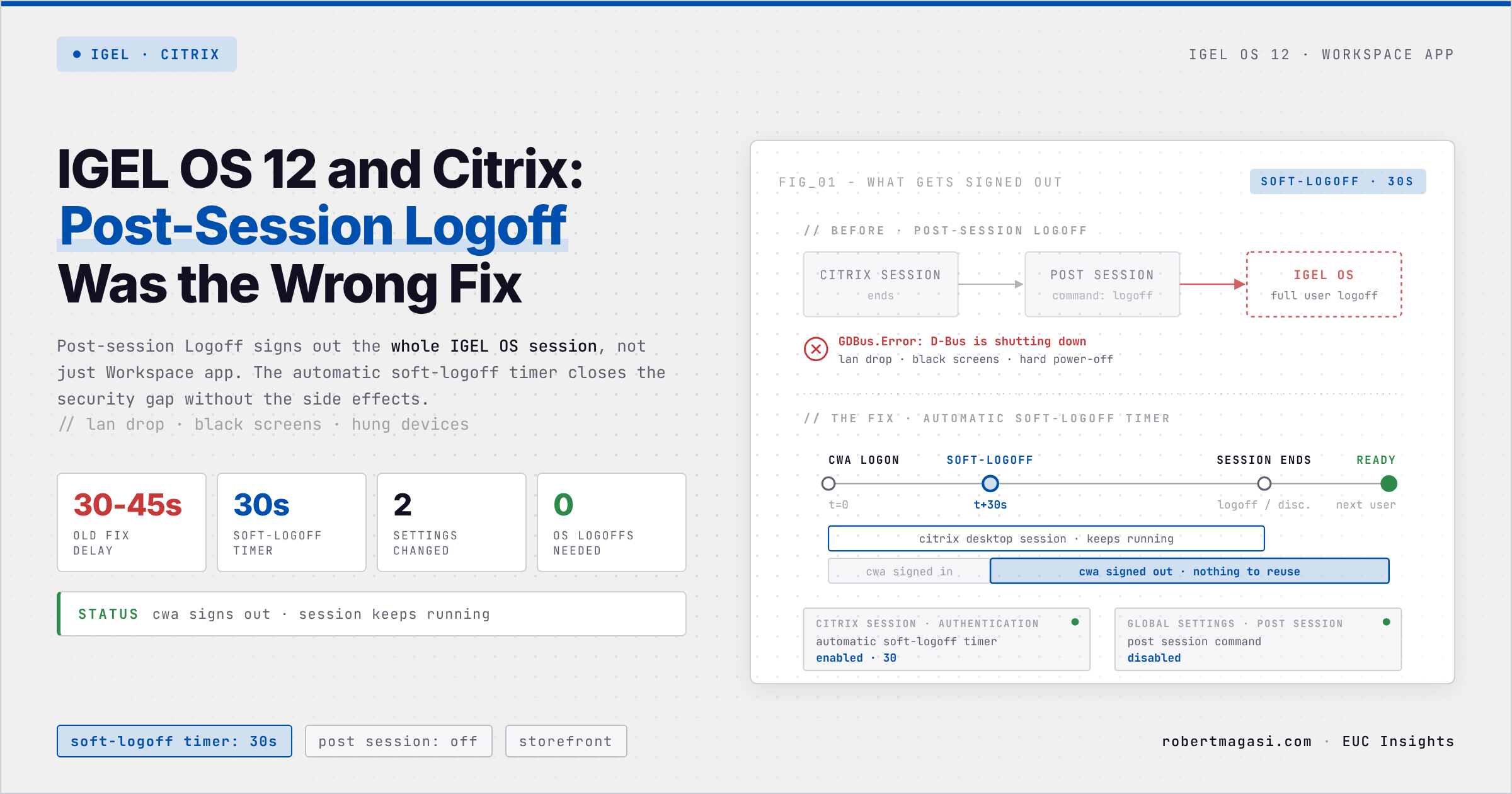
A high-priority ticket landed on my desk shortly after a customer moved its thin client fleet to IGEL OS 12. The report: a security issue on every IGEL OS 12 thin client. When a user logged off or disconnected from the Citrix desktop, Citrix Workspace app on the IGEL stayed signed in. Anyone walking up to the device could click the icon and land straight in the previous user’s desktop.
Quick answer
If Citrix Workspace app on IGEL OS 12 stays signed in after the session ends, do not use the post-session Logoff command. It logs off the whole IGEL OS session and can hang the device. Use the Automatic soft-logoff timer in the Citrix session’s Authentication settings instead, set to 30 seconds (StoreFront sessions only).
Environment
- Thin clients recently migrated to IGEL OS 12, managed through the UMS
- Citrix Workspace app for IGEL OS 12, Citrix login authentication
- Shared devices, one published desktop per device
The Obvious Fix
The Citrix app on IGEL OS 12 has its own post-session setting under Apps > Citrix > Global Settings > Post Session. I enabled Activate post session command, set Execute the command to Logoff and tested it.
Because the setting lives inside the Citrix app configuration, I assumed it would only sign the user out of Workspace app. IGEL’s description, “Automatically logs off the user after all Citrix sessions have ended”, gave me no reason to doubt that.
It worked. Around 30 to 45 seconds after the Citrix session ended, Workspace app was signed out and ready for the next user. The customer was happy, the security gap was closed, and the ticket went quiet.
What Broke Next
Some time later the customer came back with new symptoms:
- After a logoff, the Workspace app icon sometimes did nothing at all. Only a restart helped.
- It happened more often when the thin client had been in standby for a long time.
- After a disconnect, the device briefly lost its LAN connection and all screens went black before the Citrix icon could be clicked again.
- Many devices hung completely and had to be powered off hard.
I could reproduce it. The session ended, Workspace app signed out, and a click on the icon gave no reaction.
The first step was hygiene. I updated Citrix Workspace app and IGEL OS to the latest versions that were already tested and partly in use at the customer. That improved things, but it was not the fix.
The Clue in the Error Message
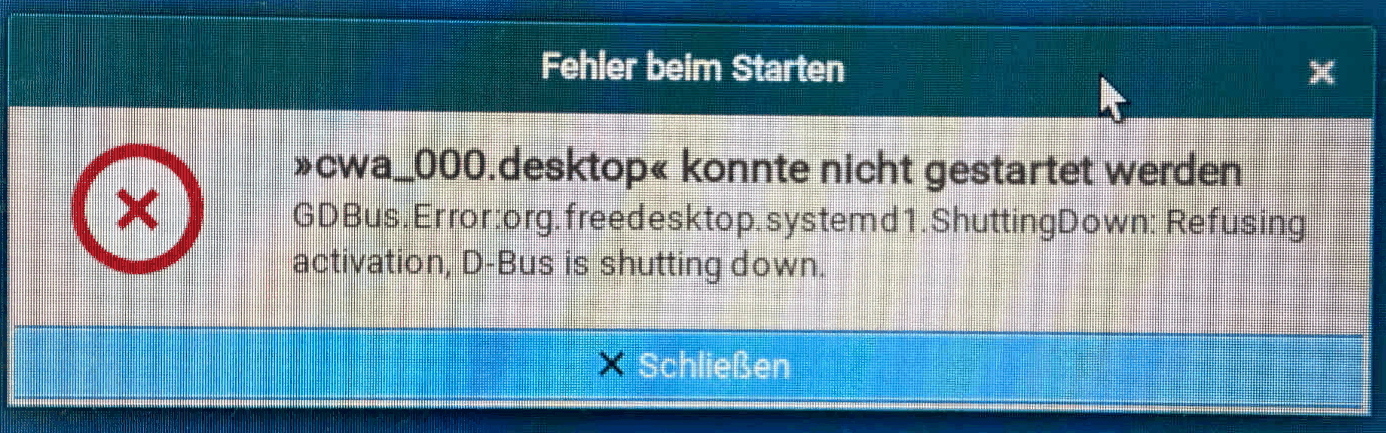
With the updated versions, clicking the Workspace app icon right after the logoff produced an error:
1
2
3
Error starting
"cwa_000.desktop" could not be started
GDBus.Error:org.freedesktop.systemd1.ShuttingDown: Refusing activation, D-Bus is shutting down.
The device UI was in German, so the text above is translated. The original message:
1
2
3
Fehler beim Starten
»cwa_000.desktop« konnte nicht gestartet werden
GDBus.Error:org.freedesktop.systemd1.ShuttingDown: Refusing activation, D-Bus is shutting down.
The last line explained everything. The device was still in the middle of shutting down the user session when the next user tried to start Workspace app.
The post-session Logoff action does not sign out of Workspace app. It logs the user off the IGEL OS session itself, even when you configure it inside the Citrix app. The same predefined Logoff action also exists system-wide under System > System Customization > Custom Commands > Post Session. I had never looked there, otherwise the scope would have been obvious much sooner. A logoff means the whole local session is torn down and rebuilt. That also explains the short network drop and the black screens. A click during that teardown hits a session that refuses to start anything new. When the teardown hung, a hard power-off was the only way out.
The security requirement was never “log off the operating system”. It was “sign the user out of Workspace app”.
The Fix: Automatic Soft-Logoff
I did not know this setting before. I found it while going through every option of the Citrix session configuration. The Automatic soft-logoff timer signs the user out of Workspace app after a set number of seconds, while the running Citrix session continues. That is exactly the requirement.
The change:
- Under
Apps > Citrix > Global Settings > Post Session, disable Activate post session command. - Open
Apps > Citrix > Citrix Sessions > [your session] > Authentication. - Enable Automatic soft-logoff timer and set it to
30.
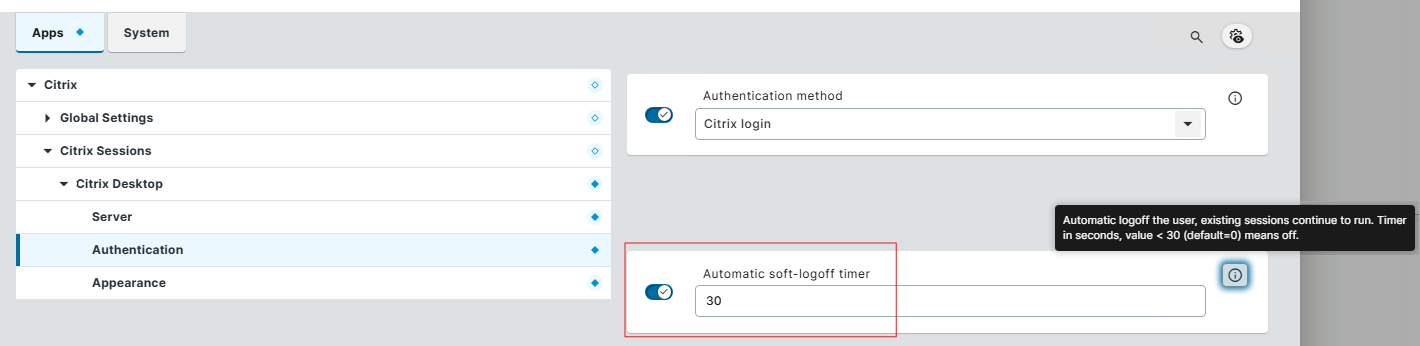
With this setting, Workspace app signs out 30 seconds after the user logs on. The desktop session keeps running untouched. When the user later ends or disconnects the session, Workspace app is already signed out and the next user can log on immediately. No OS logoff, no network drop, no black screens.
Values below 30 disable the timer, and the default is 0 (off). The tooltip in the screenshot says the same. The setting only applies when the Citrix session type is StoreFront.
Because Workspace app signs out after 30 seconds, a user who wants to launch a second resource later has to authenticate again. For a single published desktop per device, which was the case here, that is not an issue.
Summary
| Post-session Logoff | Automatic soft-logoff timer | |
|---|---|---|
| What it signs out | The IGEL OS user session | Citrix Workspace app only |
| When | After the Citrix session ends | X seconds after Workspace app logon |
| Running Citrix session | Already ended | Keeps running |
| Side effects seen | Network drop, black screens, hung devices | None |
This closed the security gap and the hung devices disappeared. The lesson for me: pick the setting that matches the actual requirement, not the one that happens to fix the symptom.
Related
- My Second Brain: Claude, Obsidian and Git - how this fix went from a field note in my vault to this post on the same day
References
- IGEL KB - Post-session Custom Commands in IGEL OS 12
- IGEL KB - Configuration of the Citrix Workspace App on IGEL OS (Global Settings > Post Session, description of the Logoff action)
- IGEL KB - Getting Started with the Citrix Workspace App on IGEL OS (Authentication settings, automatic soft-logoff timer)
Verified against the environment described above in October 2026.
Have you hit the same post-session logoff side effects on IGEL OS 12? Reach out on LinkedIn.
This post was written with assistance from Claude (Anthropic) as a drafting and editing tool. All technical content, solutions, and recommendations reflect my own hands-on experience and professional judgment.