Citrix Session Shadowing - Post-Jan 2026 Fix
Citrix Director shadowing broke after the January 2026 Microsoft patches. Here's the GPO-deployable msra.exe /offerra workaround - no third-party tools.
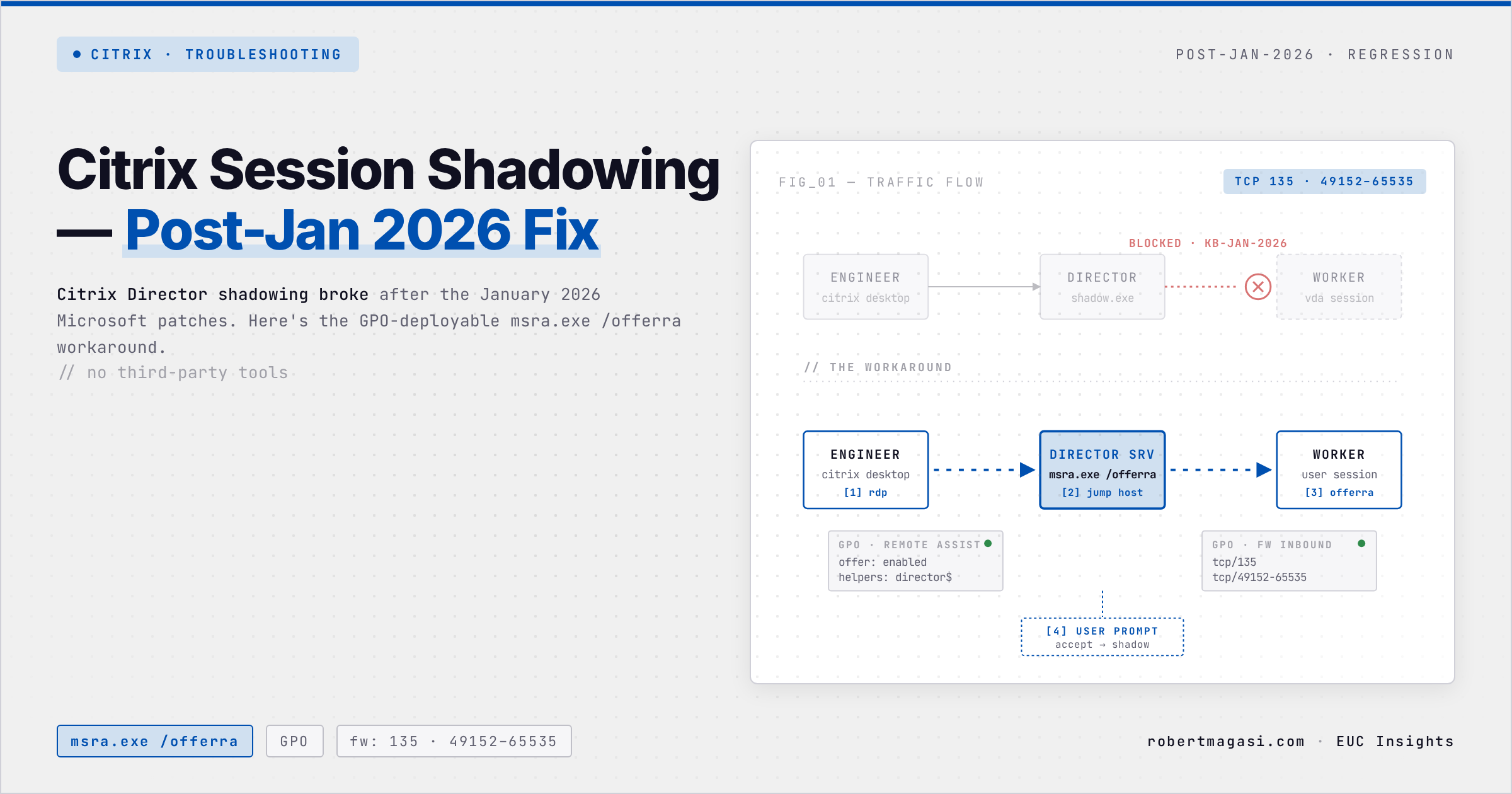
Citrix Director’s built-in shadowing stopped working for many environments after the January 2026 Microsoft patches. I picked this up from the community before our ops team confirmed it internally, and once it hits production, support engineers lose their primary tool for helping users mid-session. That’s an immediate escalation.
What Broke and What I Tried First
The January 2026 Microsoft cumulative updates broke native Citrix Director shadowing on Windows Server-based VDAs. Sessions can no longer be shadowed directly from the Director console.
The obvious fix would have been an upgrade to CVAD 2507 LTSR, which ships HDX shadowing as a replacement for the broken mechanism. With several projects already running in parallel, an upgrade wasn’t an option, not on this timeline.
The patch blocks Director from modifying a file that msra processes. The Director injection is what’s prohibited, not msra itself, and the standard msra.exe /offerra flow was never touched. So we bypassed Director entirely and called msra directly.
The Workaround: MSRA-Based Shadowing via Director Server
The solution uses Windows Remote Assistance (msra.exe) with the /offerra switch, the “offer remote assistance” mode, which lets a support engineer initiate a session to a specific worker without the end user requesting help first.
The flow:
- Support engineer connects to their Citrix Desktop
- From there, RDP to the Citrix Director server
- On the Director server, launch:
C:\Windows\System32\msra.exe /offerra - Enter the hostname of the Citrix Worker where the user session is running
- Connect, the user sees a prompt to accept the shadowing request
Prepare a shortcut on the Director server’s Public Desktop pointing to
C:\Windows\System32\msra.exe /offerraso support engineers don’t need to remember the path.
Prerequisites
1. Find the Worker Hostname
Before shadowing, the support engineer needs to know which Citrix Worker the user is connected to. This is visible in Citrix Director → Sessions → select the session → Machine details.
2. GPO - Enable Remote Assistance on Workers
A GPO must be in place linked to the Citrix Workers OU to enable Windows Remote Assistance. Configure the following settings under:
Computer Configuration → Administrative Templates → System → Remote Assistance
| Setting | Value |
|---|---|
| Configure Offer Remote Assistance | Enabled |
| Permit remote control of this computer | Enabled |
| Helpers | Add the Director server computer account or support group |
3. Firewall Rules
TCP/135 (the RPC Endpoint Mapper) is usually already open. Windows Remote Assistance also needs the dynamic high-port range open from the Director servers to the Workers subnet.
You need the following host-based firewall rules on the Citrix Workers:
| Direction | Protocol | Port | Source | Destination |
|---|---|---|---|---|
| Inbound | TCP | 135 | Director Servers | Citrix Workers Subnet |
| Inbound | TCP | 49152–65535 | Director Servers | Citrix Workers Subnet |
Without the dynamic high port range open, the RPC connection fails silently after the initial handshake on port 135. The handshake completes, the helper sees nothing, and the symptom looks like a broken GPO or a missing permission. It isn’t. It’s the firewall.
These rules should be deployed via GPO to the Workers OU:
Computer Configuration → Windows Settings → Security Settings → Windows Firewall with Advanced Security → Inbound Rules
Create two inbound rules:
- Rule 1: TCP 135, source = Director server IPs
- Rule 2: TCP 49152–65535, source = Director server IPs
Step-by-Step for Support Engineers
Once the GPO and firewall rules are in place, the support workflow is:
- Connect to your Citrix Desktop
- RDP to Director Server (e.g.
director01.domain.local) - Open Citrix Director, find the user session, note the Worker hostname
- Launch
C:\Windows\System32\msra.exe /offerra(or use the shortcut on the Public Desktop) - Enter the Worker hostname (e.g.
CTX-WORKER-01) - Click OK, the user receives a Remote Assistance request
- User accepts, shadowing begins
Why This Works
The /offerra switch puts MSRA into “unsolicited offer” mode, the helper initiates the connection rather than waiting for the user to send an invitation. This bypasses the broken Director shadowing path entirely and uses the underlying Windows Remote Assistance infrastructure directly.
The jump via the Director server matters. The connection originates from a trusted, centrally managed server with the correct firewall rules in place, rather than from individual support engineer desktops which may have inconsistent network access to the Workers subnet.
This workaround is fully supportable, requires no third-party tools, and deploys entirely via GPO. Until Microsoft or Citrix patches the January 2026 regression, it’s a reliable alternative for session shadowing.
Have you found a different fix for the Director shadowing regression? Reach out on LinkedIn.
This post was written with assistance from Claude (Anthropic) as a drafting and editing tool. All technical content, solutions, and recommendations reflect my own hands-on experience and professional judgment.