Building This Blog With Claude AI
How I built this blog with Claude as an AI pair programmer - Jekyll, Chirpy tweaks, and a custom post editor that has since grown OAuth auth, offline drafts, and a one-click draft-to-post promote.
I’ve been wanting a proper technical blog for years. Not a WordPress site with twenty plugins, not a Medium profile where I don’t own the content - something lean, fast, and fully mine. I knew the stack I wanted: GitHub Pages + Jekyll. What I didn’t want was to spend weeks in configuration files and CSS rabbit holes when I had actual work to do.
So I tried something different. I paired with Claude (Anthropic’s AI assistant) and treated it as a technical co-pilot for the entire build.
The Stack
Before any AI was involved, I made one deliberate choice: the Chirpy theme for Jekyll. It’s a gem-based theme - meaning the theme files live in a Ruby gem, not your repo - which keeps your own repository clean. Chirpy ships with a sidebar, dark mode, full-text search, table of contents, Giscus comments, and sensible SEO defaults. It’s opinionated, but in the right ways for a technical blog.
The overall stack:
| Layer | Choice |
|---|---|
| Hosting | GitHub Pages (free, CI/CD via Actions) |
| Generator | Jekyll 4.x |
| Theme | Chirpy v7.4.1 (gem-based) |
| Comments | Giscus (GitHub Discussions-backed) |
| Editor | Custom - built with Claude (more on this below) |
How I Used Claude
My workflow was conversational throughout. I’d describe what I wanted - or paste a screenshot of what was broken - and Claude would either explain the root cause or produce working code. A few patterns that made this effective:
Describe the constraint, not just the goal. Jekyll with compress_html enabled collapses all whitespace in <script> blocks, which silently breaks // JavaScript comments in production. I didn’t know this. Claude caught it when I pasted a script that worked locally but failed on GitHub Pages. Once I understood the constraint, Claude rewrote every inline script to use /* */ block comments instead.
Paste the actual DOM, not your assumption of it. When PowerShell syntax highlighting wasn’t working, the first fix attempt failed because the assumed DOM structure was wrong. The moment I pasted the actual rendered HTML from DevTools, Claude correctly identified that Rouge’s line_numbers: true setting wraps code in a <table class="rouge-table">, so the highlight target needed to be .rouge-code pre - not just code.
Screenshots are faster than descriptions for visual issues. For the code block header styling, I pasted three screenshots across a conversation - and each time, Claude addressed exactly what was visible in the image. “The blue accent bleeds to the left edge” was fixed immediately once I showed it. Trying to describe that in words would have taken longer.
Jekyll + Chirpy Setup
Chirpy provides a starter repository which is the recommended way to begin. You fork it, enable GitHub Pages on the main branch via Actions, and within minutes you have a live site. The _config.yml is where most of the real configuration lives.
Key things Claude helped with in _config.yml:
- Timezone and locale - subtle but important for post dates to display correctly
- Giscus integration - wiring up the
repo_id,category_id, andmappingvalues correctly - Social links and SEO fields -
tagline,description,social.links, and theog_imagepath for social sharing previews - Kramdown + Rouge settings - enabling
line_numbers: trueand understanding what that does to the rendered HTML
One thing Chirpy does that catches people out: it ignores your local _sass/addon/custom.scss file when running as a gem-based theme. The Jekyll build doesn’t pick up local SCSS overrides for gem-managed files. The solution is to inject all custom CSS via a <style> block in _includes/metadata-hook.html - a hook file that Chirpy explicitly loads and does pick up.
Custom Tweaks and Fixes
This is where most of the Claude collaboration happened. Out of the box, Chirpy is good. But I had a few specific things I wanted to change.
PowerShell Syntax Highlighting
Chirpy uses Rouge for server-side code highlighting. Rouge handles most languages well, but its PowerShell output is basic. I wanted client-side re-highlighting using highlight.js - which has a much richer PowerShell grammar - applied on top of Rouge’s output.
The tricky part: highlight.min.js from the CDN doesn’t bundle PowerShell. You need to load the language separately:
1
2
<script src=".../highlight.min.js" defer></script>
<script src=".../languages/powershell.min.js" defer></script>
And then the re-highlighting script needs to target the right element inside the rouge-table structure - specifically .rouge-code pre - not the outer <code> block, which would include line numbers and break everything.
VS Code-Style Code Block Headers
Chirpy’s default code block style uses macOS-like dots in the header. I switched to a VS Code-inspired look: a blue top border on the block, a two-tone header where the language tab is white on a grey header background, and a border-right separator between the language label and the copy button.
All of this is CSS injected via metadata-hook.html. The key selector is div[class^="language-"] - Chirpy wraps every fenced code block in a div with this class pattern.
CSV Highlighting
Rouge doesn’t know the csv language, so fencing a code block with ` csv ` generates a bare `<pre>` without the proper `div.language-*` wrapper that Chirpy needs for its code header. The fix: use `plaintext ` as the fence language, then add {: file="filename.csv" } on the next line to set the filename attribute.
From there, a small JavaScript function targets div[file$=".csv"], reads the plain text content, and replaces it with colored <span> elements - blue bold header row, normal values, grey commas. Rouge does nothing for plaintext beyond generating the right DOM structure, the coloring is entirely custom JS.
Social Media OG Images
By default, if you share a page from this blog, the social preview card shows no image. Jekyll/Chirpy supports an og_image site-wide setting and a per-post image.path front matter field.
I needed two things: a global fallback image for the homepage and category pages, and individual post images with a relevant visual. Claude generated the HTML/CSS for both - a two-column light-theme design using Chirpy’s own colour variables (#0056b2 for links, #f6f8fa for the sidebar grey background), rendered to a 1200×630 PNG via a headless script.
One gotcha: Chirpy’s post list on the homepage crops preview images to a 40/21 aspect ratio with object-fit: cover, showing only the centre of the image. Anything important needs to be centred, not left-aligned.
The Custom Post Editor
This was the most unexpected part of the project. I needed a way to write and publish posts without touching a terminal, something I could open in a browser and use like a CMS.
Claude built a single-file HTML editor (editor/index.html) that runs entirely in the browser, no build step, no Node, no npm. It is currently around 2 700 lines, served at robertmagasi.com/editor/, and has authored every post on the site since early March.
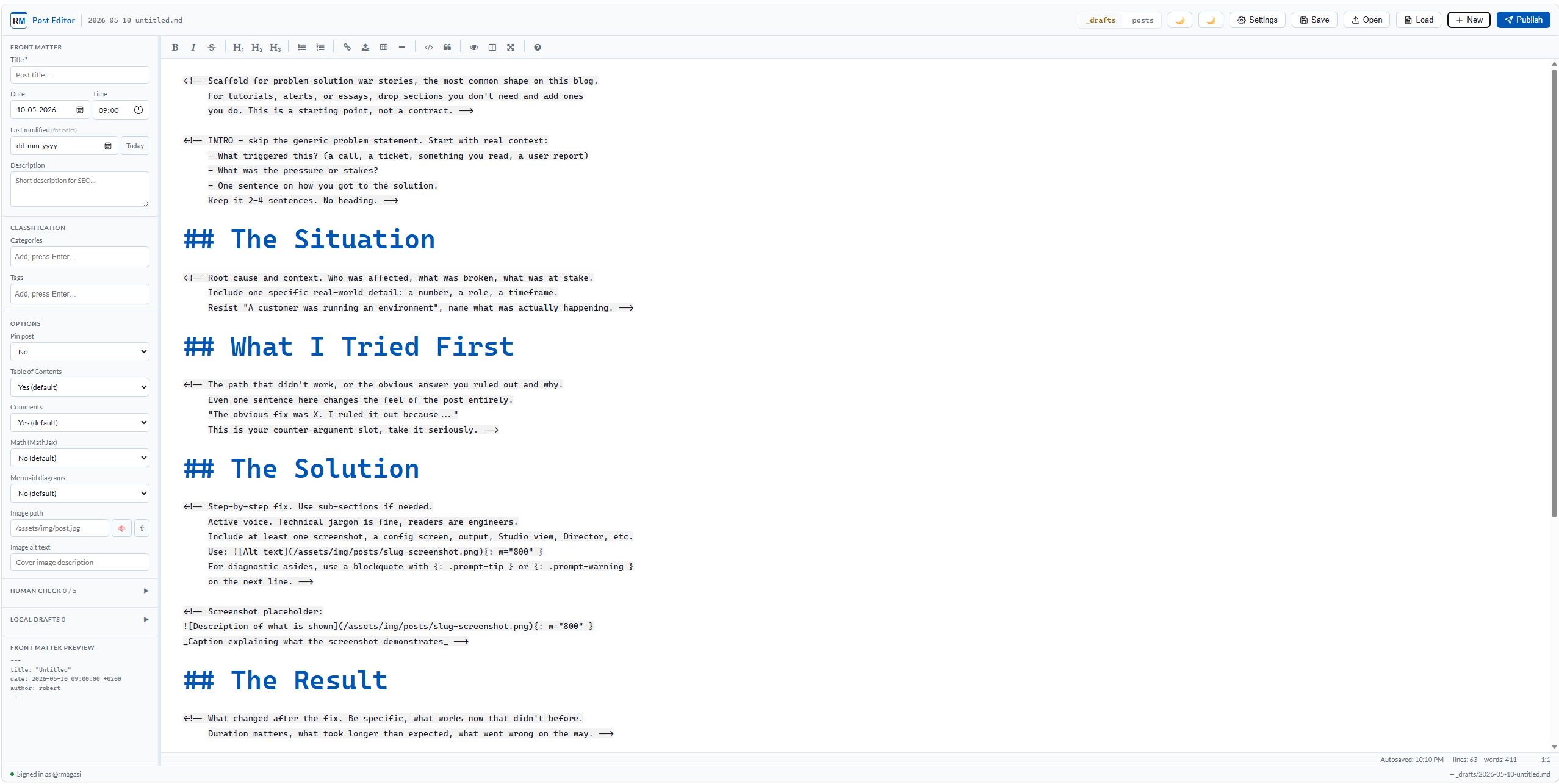 The custom post editor: EasyMDE on the left, live Chirpy-styled preview on the right, front-matter sidebar on the far right.
What it does today
Writing experience
- EasyMDE Markdown editor with a live side-by-side preview rendered using the same Chirpy CSS, correct fonts, blockquote styles, prompt boxes (tip/info/warning/danger), and code-block headers
- Full editor dark mode (not just the preview), keyed off
data-theme="dark"and persisted across reloads - Dirty-state indicator in the header plus a
beforeunloadguard, so an accidental tab close cannot lose unsaved work - Resizable sidebar with persisted width, plus keyboard shortcuts for save and publish
Front matter sidebar
- All Jekyll fields exposed as inputs: title, date, time, last-modified date, categories, tags, description, OG image path, and toggles for TOC, comments, math, and Mermaid
- Category and tag autocomplete sourced from the front matter of every post in the repo
- Unicode-aware slug generation via
String.normalize('NFKD'), so a Hungarian title like “Föl és Alá” slugs cleanly instead of collapsing to-l-s-al - Date and timezone preserved on load, so a post written in winter (
+0100) does not silently drift an hour when re-saved in summer
GitHub integration
- GitHub App authentication via the device-code flow, no Personal Access Token to paste, no client secret in the browser. Sign in once, the editor stores an access token plus a refresh token, and a 401 triggers an automatic refresh and one retry
- Load existing posts and drafts from the repo, edit them, push back as a single commit
- One-click Promote → button on every draft that commits the new
_posts/file and deletes the matching_drafts/file in the same operation - Image uploads via drag-and-drop or paste, pushed to
assets/img/posts/with the post’s date in the filename, with a warning above 1 MB and a hard block above 10 MB (the GitHub Contents API degrades on base64 payloads past ~1 MB) - Single recursive Git tree call on load instead of one HTTP request per post, with the parsed front matter cached in
localStoragekeyed by SHA
Offline drafts
- Local drafts stored in IndexedDB, completely independent of the repo’s
_drafts/folder - Every keystroke autosaves into the active local draft
- Sidebar lists all local drafts with a counter, drafts only touch GitHub when explicitly published or promoted to repo
- This means I can write on the train without a token, without WiFi, and without polluting the repo history with
wip-style commits
Correctness
- Proper YAML handling via js-yaml for both reading and writing front matter, so a title with a quote, a backslash, or an unfortunate combination of accents does not silently break the Chirpy build
- Modern base64 via
TextEncoderinstead of the deprecatedunescape(encodeURIComponent(...))pattern - Pills (categories, tags) rendered as DOM elements rather than
innerHTMLinterpolation, so a tag value cannot inject HTML or break the remove button
How I write a post with it
For a new post:
- Open
/editor/in the browser, sign in once via the device-code flow (the App is already installed on the repo) - Either start typing into a fresh local draft (autosaved to IndexedDB), or click New to clear the form
- Fill in title, categories, tags, and description in the sidebar, the slug is derived automatically
- Write the post in Markdown with the live Chirpy-styled preview alongside
- Upload the OG image via the ↑ button next to the Image path field, the editor pushes it to
assets/img/posts/and fills the path - Toggle the destination to
_posts(or leave it on_draftsfor a draft commit), hit Publish, the editor commits the.mdfile via the GitHub App
For editing an existing post:
- Click Load, pick the post from the file list (drafts have a green Promote → button next to them)
- Make edits, the dirty indicator lights up the moment something changes
- Click Today next to the last-modified field to stamp the edit
- Publish updates the file in place using the existing SHA
The only step that still happens outside the editor is committing assets that were generated by other tools, the per-post hero PNGs and the animated MP4 social cards. Those still need a git commit from the local clone.
What Worked Well
Speed. Tasks that would normally take me an hour of documentation reading - “how does Chirpy handle custom SCSS in gem mode?”, “what’s the right way to inject scripts without breaking compress_html?” - took minutes. I’d describe the problem, get the answer, apply it, and move on.
Debugging with context. When something broke, pasting the actual error, the relevant HTML, and a description of what I expected was enough for Claude to identify the cause accurately most of the time. The rouge-table DOM structure issue is a good example - the root cause wasn’t obvious, but once explained it made complete sense.
Iterative refinement. The VS Code code block header went through four visual iterations based on screenshots. Each iteration was a targeted CSS change. This kind of tight visual feedback loop would have been tedious to do alone.
What Required More Effort
Gem-based theme limitations. Claude correctly understood Jekyll’s architecture, but we still went through one failed attempt with _sass/addon/custom.scss before landing on metadata-hook.html as the right injection point. This is a Chirpy-specific behaviour that isn’t obvious from documentation.
Race conditions between deferred scripts. When multiple defer scripts interact with the DOM - Chirpy’s JS generating .code-header elements, and our JS trying to modify pre content - the order isn’t always predictable. Some issues only appeared on the deployed site (where compress_html is active) and not locally.
compress_html is invisible locally. Jekyll’s compress_html layout runs only in production. It silently strips whitespace from <script> blocks, which turns // this is a comment into broken JavaScript. This bit me once. The fix is strict: never use // comments in any inline script that goes through the Jekyll build.
Key Takeaways
| Topic | Lesson |
|---|---|
| Jekyll SCSS overrides | Use metadata-hook.html, not _sass/addon/custom.scss, for gem-based themes |
| compress_html | Use /* */ comments only in inline scripts - never // |
| rouge-table | With line_numbers: true, target .rouge-code pre, not code |
| highlight.js + PowerShell | Load languages/powershell.min.js separately - it’s not in the CDN bundle |
| CSV highlighting | Use plaintext fence + {: file="name.csv" }, then JS for the coloring |
| OG images | Centre all content - Chirpy crops preview cards from the middle |
| AI workflow | Paste actual HTML/errors/screenshots - descriptions of symptoms are less efficient |
Final Thought
The blog took about two weeks of evening sessions to build and refine. There were points where this was genuinely frustrating - Claude would get stuck on something that looked simple, I’d hit the session limit, wait for the reset, try again with a different angle, and sometimes it still didn’t work on the second attempt. What got it unstuck was usually me pointing it in a more specific direction, not Claude figuring it out independently.
But here’s what I didn’t have to do: learn every corner of Jekyll, Chirpy, and CSS from scratch. With some manual steering, the hard parts got solved. Without it, I’d have spent much more time and probably stopped earlier. That’s the honest version of what “AI pair programming” looked like on this project.
Related
- My Second Brain: Claude, Obsidian and Git - where the Claude workflow from this post went next, a knowledge base in Obsidian and git that now feeds this blog
Running into something similar with your own Jekyll/Chirpy setup? Reach out on LinkedIn.
This post was written with assistance from Claude (Anthropic) as a drafting and editing tool. All technical content, solutions, and recommendations reflect my own hands-on experience and professional judgment.