USB Devices from IGEL OS into Citrix: Optimized First, Generic Last
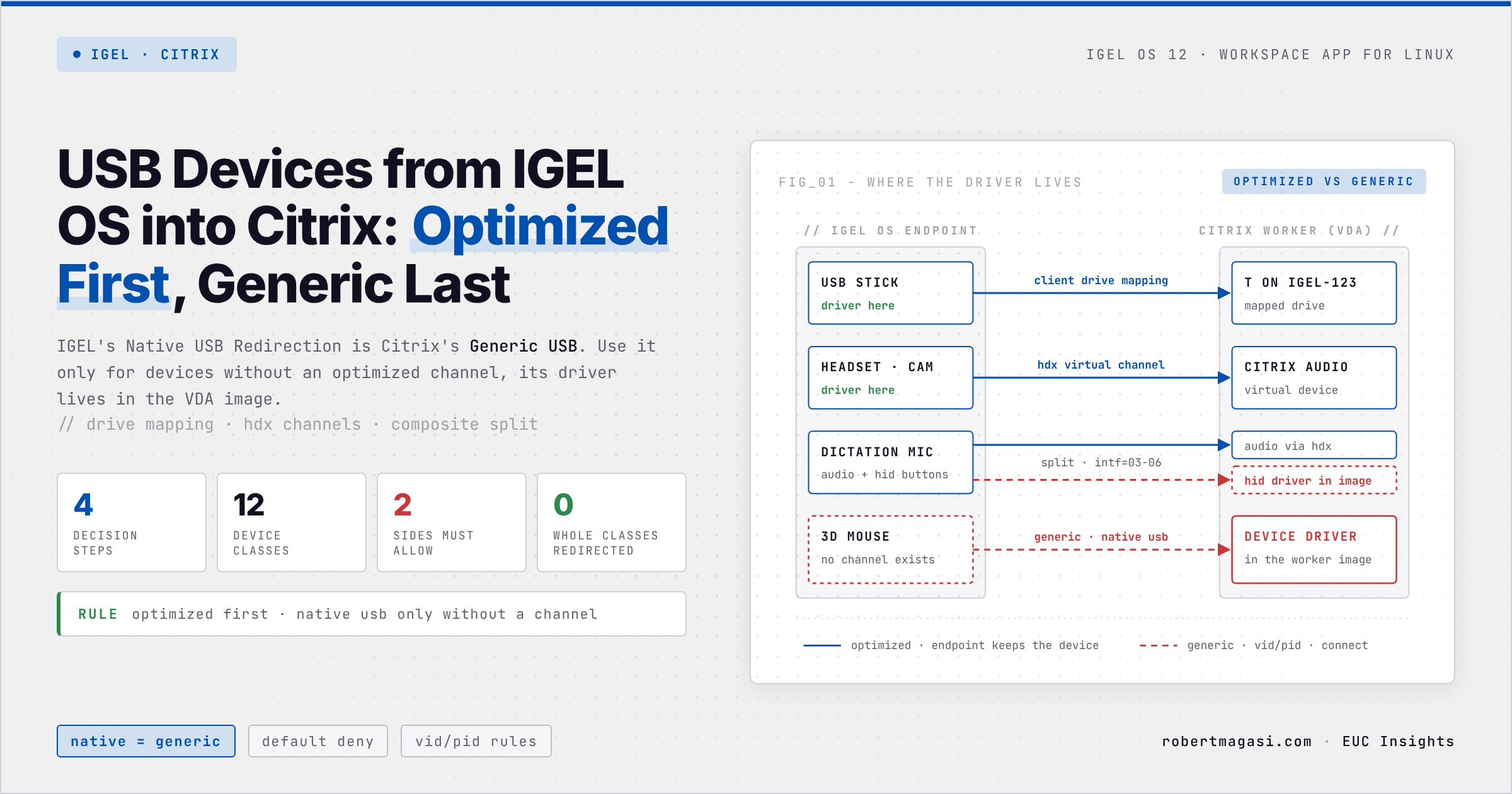
IGEL calls it Native USB Redirection, Citrix calls it Generic USB. Here is when to use it, when client drive mapping or an optimized HDX channel is the better choice, and how both sides must be configured.
In my daily work I see a lot of different EUC environments, managed by customers, partners or service providers. I like that part of the job, because every environment solves the same problems in its own way. One scenario comes up again and again: USB redirection from a thin client into the Citrix session.
When I first had to dig into it, the right configuration was anything but obvious. IGEL and Citrix use different names for the same thing, the settings live in several places, and every device type, from a USB stick to a dictation microphone, needs its own approach. IGEL’s Native USB Redirection is Citrix’s Generic USB redirection, to name just one example.
For the last one or two years I did not work much with IGEL thin clients. Now I have IGEL customers again, and IGEL OS 12 is the new standard, so it was time for a refresh. Not much has changed in that sense. It is still not obvious how to configure it correctly. IGEL and Citrix both have plenty of material in their knowledge bases, but it is spread over many articles. Since I had to refresh my knowledge anyway, I tried to put the pieces together in one post. Maybe it saves someone else the same search.
Quick answer
Use the optimized HDX path for every device that has one: client drive mapping for storage, HDX audio, webcam, smart card, printing, SANE scanning, COM port mapping and vendor virtual channels. Use Native (Generic) USB redirection only for devices without a channel, allow them one by one by VID/PID, and install the driver in the VDA image.
Applies to
- IGEL OS 12 with the Citrix Workspace app, configured through the UMS
- Citrix DaaS or CVAD VDAs, Generic USB controlled through Citrix policies
- Citrix Workspace app for Linux 2405 or later for VDA rule precedence and the DDC USB policies
Optimized vs Generic
The difference decides where the driver lives and who owns the device.
| Optimized (HDX virtual channel) | Generic (IGEL: Native USB Redirection) | |
|---|---|---|
| Driver | On the IGEL endpoint | On the VDA, in the Citrix Worker image |
| Device on the endpoint | Stays usable locally | Taken away from the endpoint |
| Bandwidth | Built for WAN | Chatty, isochronous devices only on low-latency LAN |
| Configuration | Usually on by default | Off by default on both sides, allow per device |
With Generic, the VDA sees the raw USB device. If the Worker image has no driver for it, the device shows up as unknown in Device Manager inside the session. That is the first thing to check when a redirected device “does not work”.
Off by default does not mean deny by default. Once Generic USB is enabled, the built-in Citrix rules on the VDA and in Workspace app for Linux deny only a few classes, such as hubs, keyboards and mice (HID boot devices), smart cards, CDC and wireless controllers, and end with a rule that allows everything else. The deny by default comes from the IGEL default rule, which is why it must stay on Deny.
The policy Client USB device optimization rules does not switch a device to an optimized channel. It only applies to HID input devices (class 03) that are already redirected over Generic USB and tells the VDA how to handle their data:
Mode=00000002(interactive) keeps 3D mice and pen tablets responsive under latency,Mode=00000004(capture) records every pen point of a signature pad. Without a rule nothing is optimized.
The Decision Path
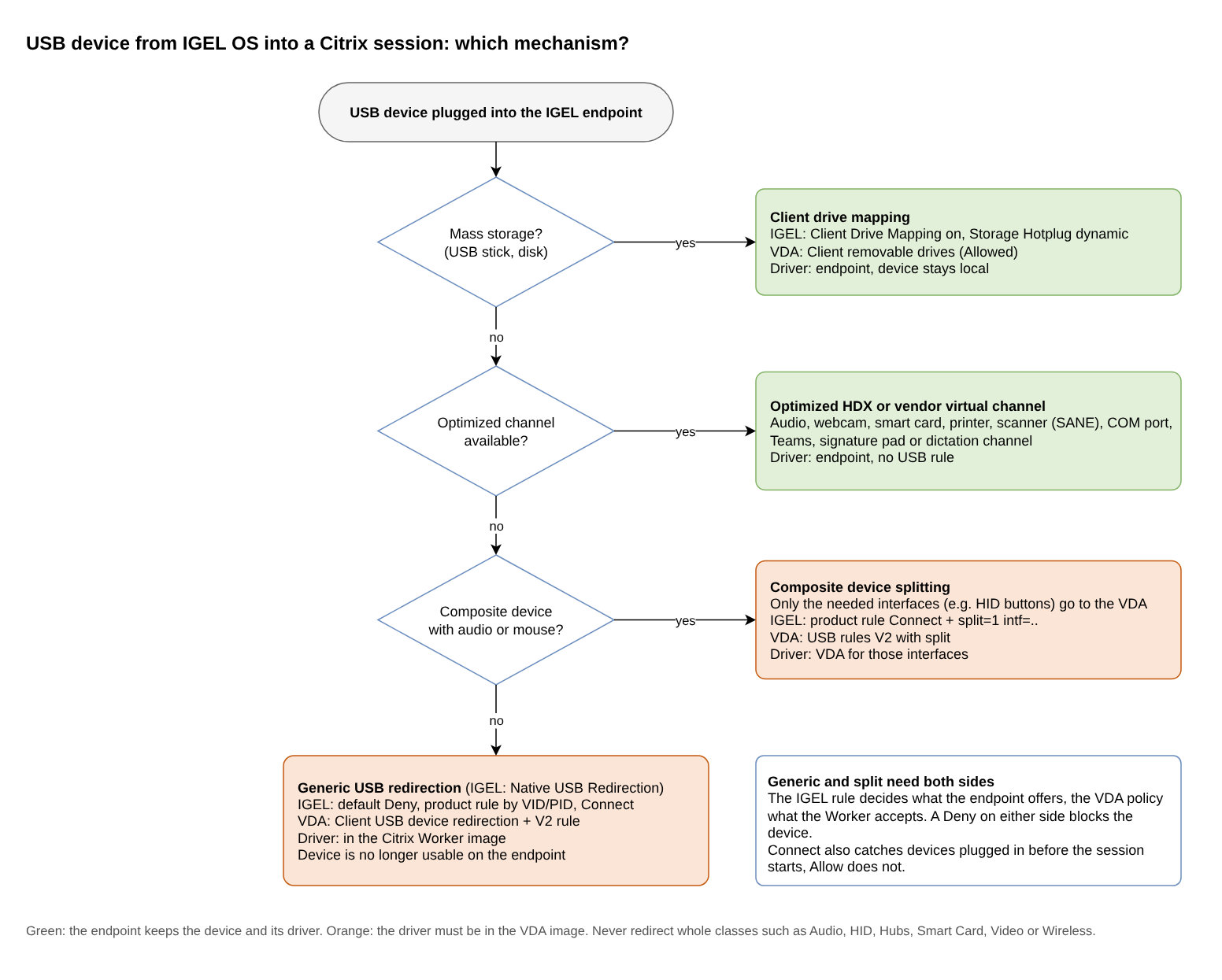
Four questions, in this order:
- Is it mass storage? Use client drive mapping.
- Is there an optimized or vendor channel? Use it.
- Is it a composite device with audio or mouse interfaces? Split it and redirect only the interfaces that need the VDA.
- Everything else goes through Generic USB redirection.
Per Device Class
| Device | Preferred | Fallback |
|---|---|---|
| USB stick, disk | Client drive mapping | Generic, only for safe removal in the session or hardware-encrypted sticks |
| Headset, microphone | HDX audio | Generic only as a last resort, the device is taken away from the endpoint |
| Webcam | HDX webcam compression or UC optimization | Generic as a whole device, LAN only |
| Smart card reader | Smart card virtual channel | None, smart cards (class 0b) are denied by default on the VDA and in Workspace app for Linux, keep them on the smart card channel |
| Printer | Client printer mapping with the Universal Print Driver | Generic |
| Scanner | SANE redirection (Workspace app for Linux 2508 and CVAD 2503 or later), TWAIN redirection is Windows-client only | Generic, poor scan quality |
| Signature pad | Vendor virtual channel (signotec, StepOver) | Generic with capture mode |
| Dictation | Vendor channel or composite split | Whole device Generic, loses local audio |
| Serial device | COM port mapping | None, virtual COM ports do not work over Generic |
| 3D mouse | Generic by VID/PID with interactive mode (Mode=00000002) | - |
IGEL’s own guidance adds a hard rule: never redirect whole classes such as Audio, Bluetooth, HID, Hubs, Smart Card, Video input or Wireless. Redirect a single device from them by VID/PID instead.
USB Sticks: Client Drive Mapping
Client drive mapping keeps the stick on the endpoint and shows it in the session as T on IGEL-123456789. No driver on the VDA, no USB traffic.
- On the VDA, keep Client drive redirection, Client removable drives and Auto connect client drives on Allowed. They are by default.
- In IGEL OS 12, enable Client Drive Mapping under
Apps > Citrix > Global Settings. It is off by default in the IGEL Citrix app, even though the VDA allows it. - Enable dynamic client drive mapping under
Devices > Storage Devices > Storage Hotplug. - Keep mass storage (class 08) out of your Native USB Redirection rules. A matching generic rule redirects the stick as a USB device instead of mapping it.
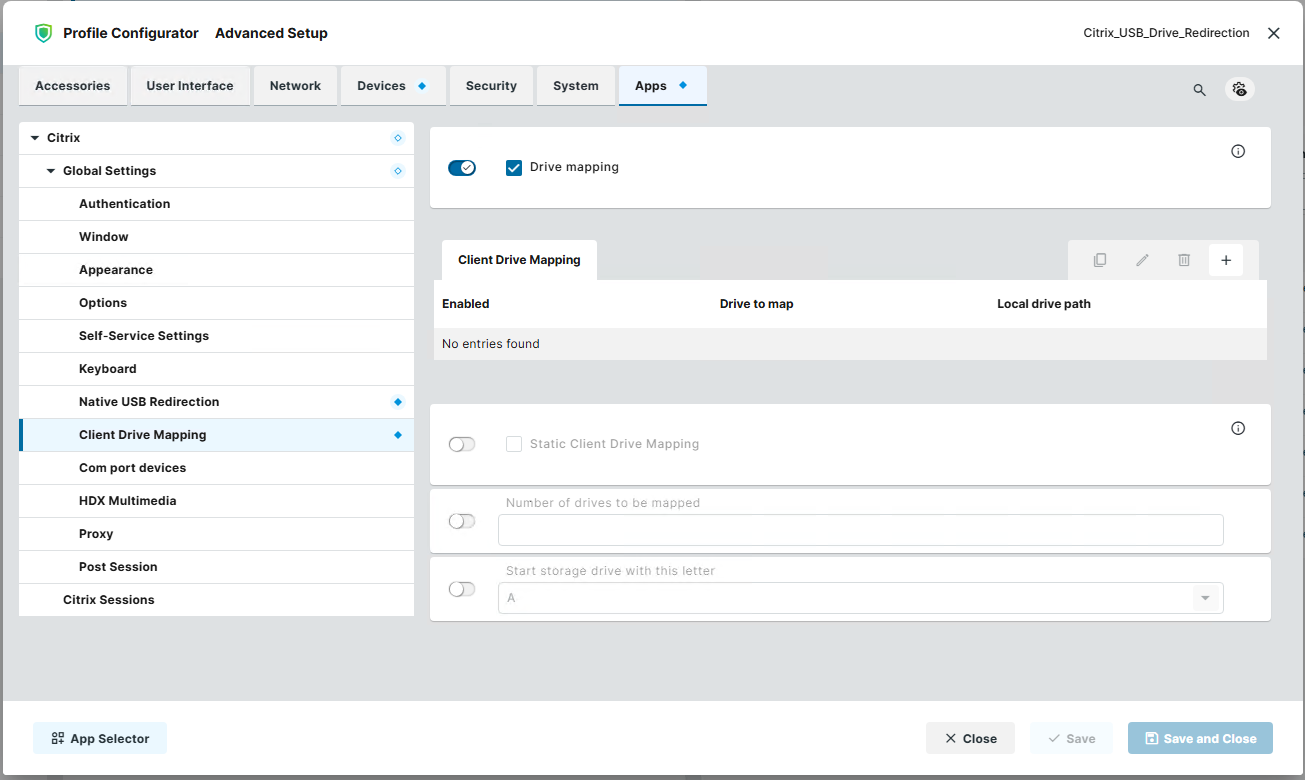 Client Drive Mapping in the IGEL OS 12 Citrix app. The toggle is off by default, static drive mappings are not needed for USB sticks.
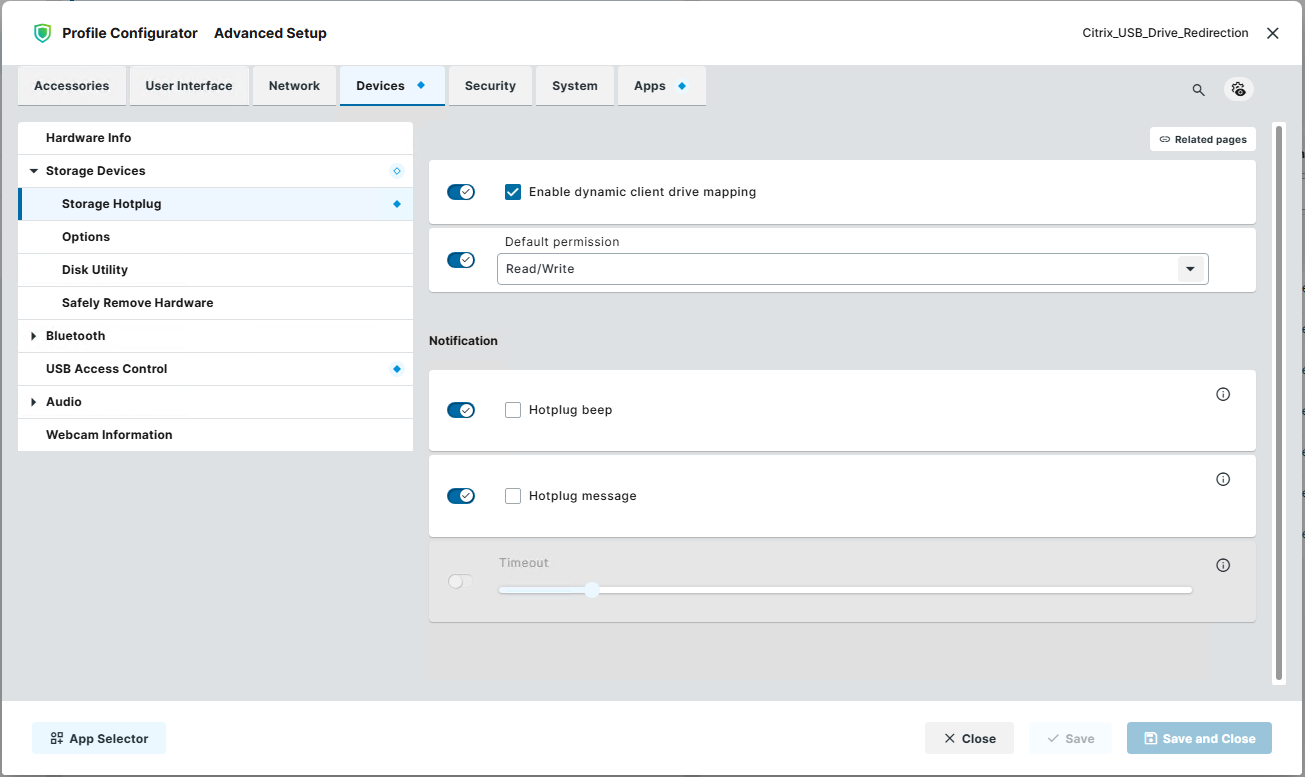 Storage Hotplug with dynamic client drive mapping and Read/Write as default permission. Without this, the stick mounts on the IGEL but never reaches the session.
Generic Redirection per Device
Keep the default rule of Native USB Redirection on Deny, always. Allow devices only one by one, with explicit product rules by VID and PID. A default rule on Allow, or a whole class rule, redirects every USB device that no other rule denies away from the endpoint, headsets and USB sticks included.
Get the VID and PID on the IGEL endpoint. The quickest way is the System Information tool on the device, which shows Class, Subclass, Vendor ID and Product ID. For more detail, open a shell on the IGEL over the Secure Terminal. Enable it on the device under
System > Remote Access > Secure Terminal(off by default, or for all devices in the UMS underUMS Administration > Global Configuration > Remote Access). Then right-click the device in the UMS, choose Secure Terminal and accept the device certificate. Log in asuser, switch to root withsuand list the devices:1 2
su lsusb
Unplug the device and run
lsusbagain if the name is not clear.lsusbshows each device asID VID:PID, followed by the vendor and product name. A Nuance PowerMic 4, for example, shows up asID 0554:0064. The first number (0554) is the Vendor ID, the second (0064) the Product ID.In IGEL OS 12, open
Apps > Citrix > Global Settings > Native USB Redirection. Turn it on, keep the default rule on Deny and add a product rule with the VID and PID.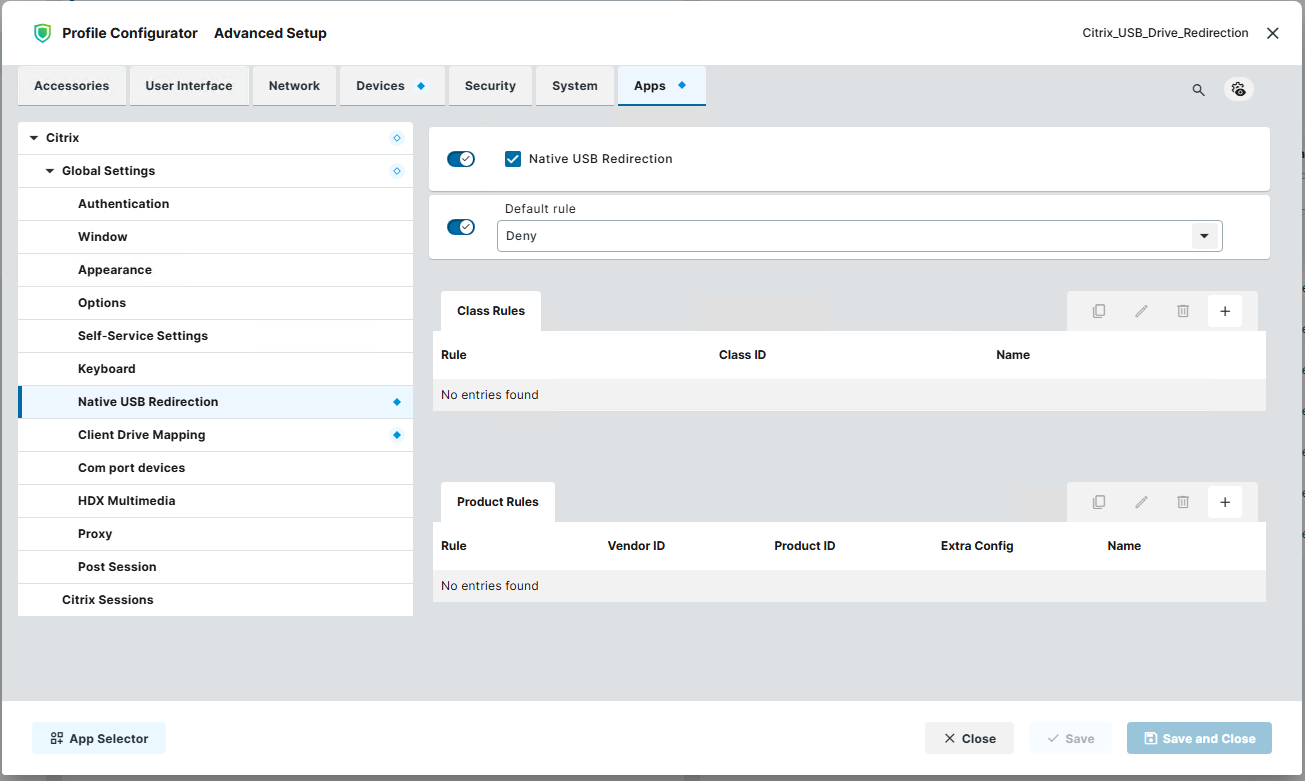 Native USB Redirection in the IGEL OS 12 Citrix app, the starting point: enabled, default rule Deny, no rules yet. Each device gets its own product rule, the Extra Config column is where a split rule goes.
- Use Connect, not Allow. Connect redirects the device automatically when the session starts, so it also catches a device that was plugged in before. Allow only redirects automatically after the session has started. Since Citrix Workspace app for Linux 2207, auto-redirection must be enabled manually, and IGEL suggests switching the rule to Connect when redirection stops after that update.
- On the VDA, set Client USB device redirection to Allowed for the users who need it and add a matching line to Client USB device redirection rules (Version 2). Once Version 2 is set, the older Client USB device redirection rules setting is ignored. Set Allow existing USB devices to be automatically connected and Allow newly arrived USB devices to be automatically connected to automatic. Citrix Workspace app for Linux reads these DDC policies from 2405 on. The policy reference page still lists the two automatically connected settings as Windows-only, the Workspace app for Linux USB documentation has the current list.
- Install the device driver and vendor software in the Worker image.
- Check Device Manager in the session.
The IGEL rule decides what the endpoint offers, the VDA policy decides what the Worker accepts. With Citrix Workspace app for Linux 2405 or later, Citrix states that the rules on the VDA take precedence over the rules on the client. Keep the Version 2 rules as narrow as the IGEL rules, by VID and PID.
Composite Devices: Split Them
A dictation microphone is one cable but several USB interfaces: audio in and out, a mouse, and HID interfaces for the buttons. Redirecting the whole device takes the audio away from HDX and the mouse away from the endpoint. Splitting redirects only the interfaces the dictation software needs.
When I had to get a Philips SpeechMike working in a Citrix session, buttons included, the post Citrix USB composite device splitting with IGEL OS by Fredrik Brattstig on VirtualBrat was a huge help. It walks through finding the right interfaces and building the split rule on IGEL OS step by step.
To see the interfaces of a device, run lsusb in verbose mode for its VID:PID and keep only the interface numbers and the HID lines:
1
lsusb -d 0554:0064 -vv | grep -e bInterfaceNumber -e HID
Each bInterfaceNumber is one interface, the HID lines show which of them are buttons or controls. Those numbers go into intf=. The output does not always tell which HID interface carries the buttons, the device vendor does.
Citrix now publishes official rules for this in the Nuance OEM guide of 2607 LTSR (CVAD and VDA 2402 or later, Windows 11 or Windows Server 2019 or later as session host, Workspace app for Linux 2601 or later). On Windows Server, microphone access is off by default and must be enabled. Citrix supports both devices in single-hop sessions only, a double-hop setup is not recommended for dictation. The rules cover the PowerMic 4 and the Philips SpeechMike, other models need their own interface numbers:
1
2
3
4
5
Connect: VID=0554 PID=0064 split=1 intf=04,05,06,07 #PowerMic4 HID
Deny: VID=0554 PID=0064 split=1 intf=00,01,02 #PowerMic4 audio
Deny: VID=0554 PID=0064 split=1 intf=03 #PowerMic4 mouse
Connect: VID=0911 PID=0c1c split=1 intf=03,04,05,06 #SpeechMike
Deny: VID=0911 PID=0c1c split=1 intf=00,01,02 #SpeechMike audio
On IGEL the same rule goes into the product rule of Native USB Redirection: VID, PID, rule type Connect, and split=1 intf=03,04,05,06 in Extra Config. If the vendor ships a virtual channel or extension for IGEL (Philips Speech Extensions, Olympus, the Nuance Extension for PowerMic), prefer that and add it to the VDA’s virtual channel allow list.
A deny on a single interface of an unsplit composite device denies the whole device, and it stays on the endpoint.
Troubleshooting
- Unknown device in the session: the driver is missing in the Worker image.
- Device not redirected although the IGEL rule allows it: the VDA policy or its default rules deny it.
CtxUsbDiagnostics.exeon the VDA shows which rule blocked it, and the VDA event log records allowed and denied redirections. - Redirection stopped after a Workspace app update: switch the IGEL rule from Allow to Connect.
- USB stick visible on the IGEL but not in the session: a generic rule grabbed it, or Client Drive Mapping is still off in the IGEL OS 12 Citrix app.
- Need the endpoint side of the story: in the UMS Console,
Help > Save device files for supportcollects the device logs into atc_files_for_support_...ZIP. Without the UMS, run/config/bin/create_support_informationas root on the IGEL. It writes/tmp/tclogs.zip.
Related
- IGEL OS 12 and Citrix: Post-Session Logoff Was the Wrong Fix - another IGEL OS 12 Citrix setting that does more than its name suggests, post-session Logoff logs off the whole device session
References
- Citrix - USB devices policy settings
- Citrix - Generic USB devices
- Citrix - Generic USB redirection and client drive considerations
- Citrix - Composite devices and device splitting (2607 LTSR)
- Citrix - Nuance OEM guide, configuration (2607 LTSR)
- Citrix - USB troubleshooting and USB diagnostics tool
- Citrix Workspace app for Linux - USB
- Citrix Workspace app for Linux - SANE redirection
- Citrix - Smart cards (7.15 LTSR)
- Citrix Workspace app for Linux - What’s new
- IGEL KB - Native USB Redirection for Citrix Sessions in IGEL OS
- IGEL KB - When to Use USB Redirection
- IGEL KB - How to Map USB Storage Media into Citrix Sessions
- IGEL KB - Configuration of the Citrix Workspace App on IGEL OS
- IGEL KB - Storage Hotplug in IGEL OS 12
- IGEL KB - How to Configure Citrix Native USB Redirection
- IGEL KB - Debugging: How to Collect and Send Device Log Files
- IGEL Community Docs - HOWTO Nuance Dictation (community, its split rules use the Horizon exclude-list format, not Citrix
intf=) - VirtualBrat - Citrix USB composite device splitting with IGEL OS
Checked against the IGEL and Citrix documentation in October 2026.
Which USB device gives you the most trouble on IGEL thin clients? Reach out on LinkedIn.
This post was written with assistance from Claude (Anthropic) as a drafting and editing tool. All technical content, solutions, and recommendations reflect my own hands-on experience and professional judgment.